August 11, 2026
We Built a Chrome Extension That Fills Scholarship Forms
The short version: The ScholiBuddy Chrome extension reads the scholarship application open on your screen, fills the fields it can match to the profile you saved with us, and then shows you every single field it touched — sorted by how confident it was. You review, you edit, you submit. It never submits anything for you.
What does the extension actually do?
It does the typing you have already done eight times. Name, address, school, GPA, graduation year, intended major, household size, the activities list you have rewritten in four slightly different shapes — all of it comes out of the profile you built on ScholiBuddy and goes into the form in front of you.
That is the whole job. It is not a scholarship finder, it is not a submission service, and it does not apply to anything on your behalf. It is the copy-paste step, automated, on the page where the copy-pasting actually happens.
How does it decide what goes in each field?
Two ways, and it is worth knowing the difference because they behave differently.
Direct profile matching. Most fields are obvious. A field labelled "Cumulative GPA" gets your GPA. A field labelled "Expected graduation" gets your graduation year. This is deterministic — it looks at the label, the field type, and the options, and picks the answer you already gave us.
AI mapping, for the awkward ones. Real application forms are not tidy. "Tell us about your community involvement (100 words)" does not map cleanly onto any single profile field, and "Are you the first in your family to attend a four-year institution?" is a yes/no dropdown asking about something you wrote as prose. For those, the extension sends the structure of the field — its label, type, options, character limit, and any help text next to it — and works out which of your saved answers belongs there.
The second kind is why the review step exists.
Why does it show you everything it filled?
Because silent autofill is worse than no autofill.
If a tool fills forty fields and says nothing, you end up checking all forty anyway — and you check them badly, because nothing tells you which ones deserve attention. You have saved no time and you are less careful than if you had typed it yourself. That is a bad trade on a form that decides whether someone reads your application.
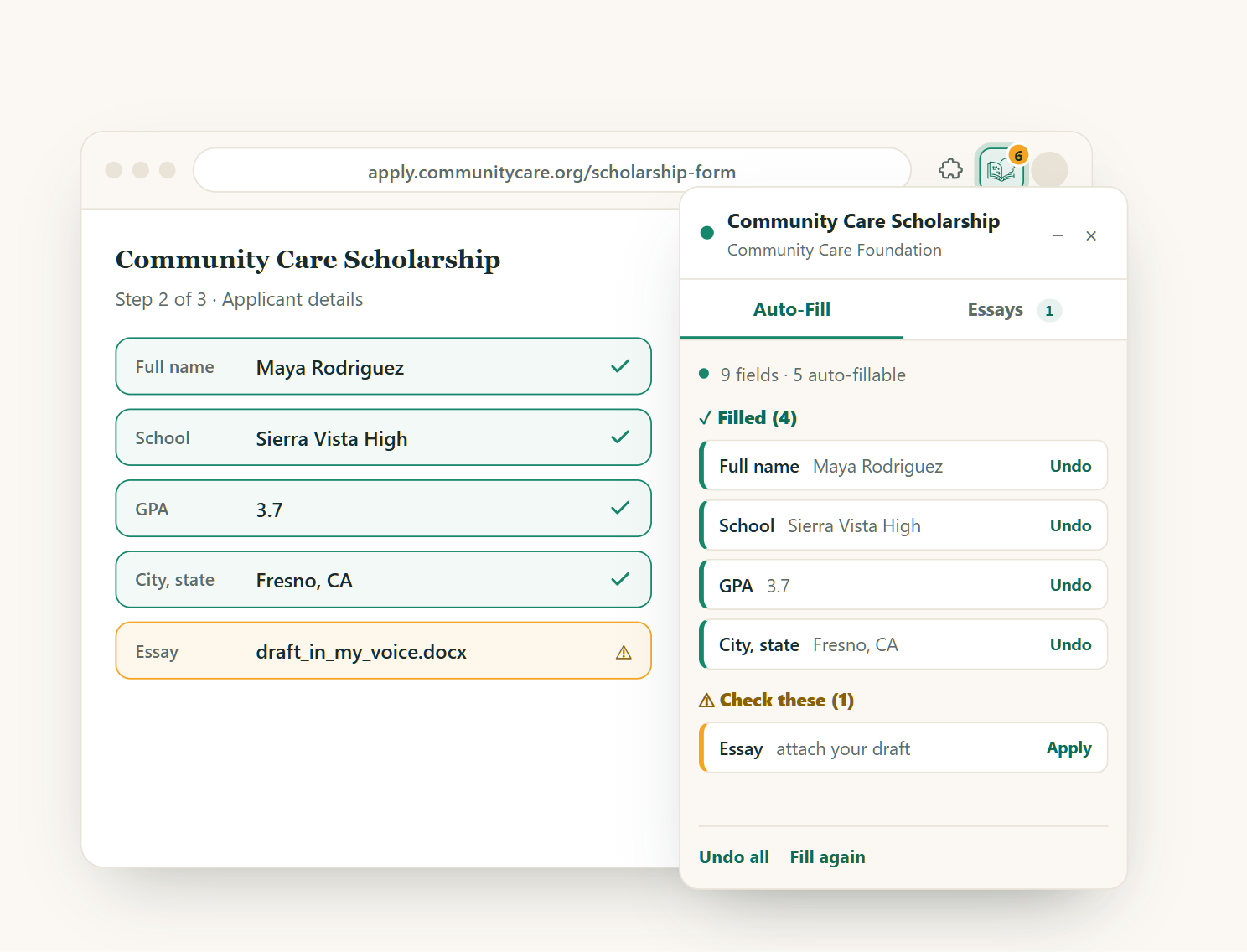
So the sidebar sorts its own work into three groups before you look at anything:
Filled — high confidence, already in the field, one click to undo.
Check these — it filled or drafted something but wants a second opinion. Editable right there in the sidebar, without hunting for the field on the page.
Your input needed — it was not sure enough to touch the field, and it tells you why.
Which means your attention goes to the six fields that need it instead of being spread evenly across forty. That is the actual time saving. The typing is the small part.
What will it never touch?
Some things are not ours to fill, and a few are not ours to even read.
It never submits an application. The submit button is yours.
It never ticks a consent, agreement, or certification checkbox. Those are signatures. A tool that auto-agrees that your information is true and complete is a tool that signs for you, and we will not build that.
It never reads password, Social Security number, credit card, or bank fields. Those are filtered out on your own computer, before anything is assembled or sent anywhere. Same for file uploads and hidden fields.
That last one is worth checking on any autofill extension you install, ours included. The permission screen Chrome shows you is broad — it has to be, because scholarship applications live on thousands of unrelated university, foundation, and community-organization domains with no pattern to list in advance. Broad permission and broad use are not the same thing, and the difference is something a tool should state plainly rather than leave you to assume. The FTC's guidance on scholarship and financial-aid scams is a good calibration for what "state it plainly" should look like across this whole category.
Does it work on every scholarship application?
Most, not all — and we would rather say that than find out you believed otherwise.
Application forms are built by everyone from a national foundation with a real engineering team to a county rotary club with a form plugin from 2014. Some use custom widgets that do not behave like form fields at all. When the extension cannot read a form, it tells you instead of half-filling it.
There is also a deliberate limit: the panel only appears on applications you opened from your ScholiBuddy account. Find an award, hit Apply, and the panel comes up beside the application. On every other page — your email, your bank, a news site — the extension does not mount, does not scan the page, and does not contact our servers. It is not watching you browse, and it is not idling on pages that have nothing to do with scholarships.
What about essays?
The sidebar has a drafting panel that works from the actual prompt on the page and respects the character limit the form is enforcing — which is the part that usually breaks a reused essay. It drafts and tightens with you, in your own voice; it does not write your essay for you, and you should not want it to. If you have already written the right essay, pull it out of your ScholiBuddy vault instead of generating a new one.
Which plans include it?
Profile-based filling works on every plan, free account included. AI mapping — the awkward-field case above — and essay drafting are paid features on the Premium and Pro plans, and the sidebar shows how many you have left before you spend one. No surprise paywall halfway through an application. Current plan details are on the pricing page.
How do I start using it?
Create a free ScholiBuddy account and fill in your profile. The extension is only as useful as what is in there — a half-filled profile produces a half-filled form.
Install the extension. The extension page has the Add to Chrome button, plus the full detail on what it touches and what it leaves alone.
Find an award and hit Apply. Try it on something concrete rather than a test page — a no-essay award is a good first run, since the form is short enough to check quickly. There is a running list on the no-essay scholarships hub, including the Niche "No Essay" Scholarship (deadline 15 October 2026).
Click Fill, then read the three groups. Fix what is in "check these", answer what is in "your input needed", and submit it yourself.
If you are a high-school senior, the high-school-senior hub is the faster starting point — the Life Lessons Scholarship Program (deadline 1 March 2027) is one of the open ones there.
If you are wondering whether the smaller awards are even worth the effort once the form takes two minutes instead of twenty, we looked at that honestly in are small scholarships worth applying to? — the answer changes once the cost per application drops.
And the ordinary advice still applies: scholarships are one layer of a funding plan that starts with federal aid. Federal Student Aid's scholarship page and the CFPB's paying-for-college tools are the right first stop; we are the layer after that, not a replacement for it.
Frequently asked questions
Do I need a ScholiBuddy account to use the extension?
Yes. It fills from the profile saved in your account, so there is nothing to fill from without one. A free account is enough to start.
Does the extension read every page I visit?
No. It only activates on an application you opened from your ScholiBuddy account. On any other page it does not mount, does not read the page, and does not call our servers.
Will it submit my scholarship application for me?
No, and it will not tick a consent, agreement, or certification checkbox either. Everything it does is reviewable and undoable before you submit.
What information does it send to your servers?
The structure of the form — field labels, types, options, whether a field is required, its character limit, any help text — plus the page address so we know which scholarship you are applying to. Password, Social Security number, credit card, bank, file, and hidden fields are removed on your own computer first.
Is the extension free?
Profile-based filling works on every plan including the free one. AI mapping and essay drafting are Premium and Pro features, with the remaining count shown in the sidebar.
What if it fills something in wrong?
Every filled field is one click to undo, and anything the extension was unsure about lands in "check these" as an editable value rather than being quietly written into the form. That is the design — you are reviewing work, not trusting it.
Still searching for scholarships manually?
Find scholarships you actually qualify for — AI matches you in minutes. Free to start.
Find My Scholarships →